Minecraft isn’t just a crafting game — it’s a whole world of creativity, exploration, and adventure. From building your ideas to surviving dangerous mobs, everything becomes easier when you know the controls well. Whether you’re playing on PC, console, or mobile, the right button controls can make your gameplay smoother, faster, and much more enjoyable.
Minecraft enthusiasts can download the complete Minecraft Controller Guide PDF from here for their convenience.
In today’s guide, we will cover:
- Minecraft PC keyboard and mouse controls.
- Minecraft console controls for PlayStation, Xbox, and Nintendo Switch.
- Minecraft APK controls on mobile devices.
- Pro tips to improve your gameplay experience.
- Control customization for all platforms.
- How to change sensitivity and keybinds for better movement.
- Quick access shortcuts every player should know.
- Best settings for smoother combat and PvP.
- How to use controller support on mobile.
- Accessibility settings for easier navigation.
How to Play Minecraft with Mouse & Keyboard? (Java & Bedrock Edition)
controls of minecraft on PC are simple and convenient. It is most efficient to play using PC controls.
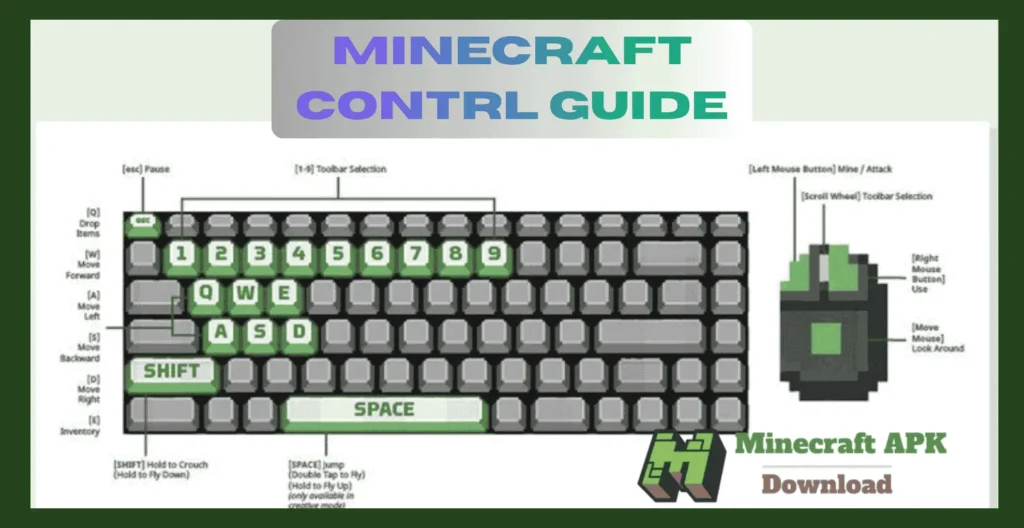
| Action | Keyboard Key |
|---|---|
| Move Forward | W |
| Move Backward | S |
| Move Left | A |
| Move Right | D |
| Jump | Spacebar |
| Sprint | Ctrl |
| Crouch / Sneak | Shift |
| Inventory | E |
| Chat | T |
| Drop Item | Q |
| Hotbar (1–9) | 1 to 9 |
| Attack / Break Block | Left Mouse Button |
| Use / Place Block | Right Mouse Button |
| Swap to Off-Hand | F |
| Open Emotes | B |
| Reload Chunks | F3 + A |
| Screenshot | F2 |
| Debug Screen | F3 |
Mouse controls:
- Players can Break Blocks and Attack Mobs with Left Click.
- Players can Place Blocks and Use Items/Resources with a Right Click.
- Players can change Hotbar Items with the Scrolling Mouse’s Wheel.
- Players can Look Around and Change Views by Navigating the Mouse.
Customizing PC Controls in Minecraft
- Open Minecraft > Go To Settings > Go To Controls.
- Here, you can assign keys according to your preference.
- Recommended: Set sneak to toggle instead of hold for easier gameplay.
How to play Minecraft with Console Controls? (Xbox, PS4/PS5)
Console controls in Minecraft are simple and comfortable, making it easy for beginners and pros to explore, build, and survive. Here’s a quick comparison of the main actions on both Xbox and PlayStation:
| Action | Xbox | PlayStation |
|---|---|---|
| Move | Left Stick | Left Stick |
| Look Around | Right Stick | Right Stick |
| Jump | A | X |
| Sneak/Crouch | RS (Press) | R3 (Press) |
| Use / Place Block | LT | L2 |
| Attack / Destroy | RT | R2 |
| Open Inventory | Y | Triangle |
Tips for Better Gameplay
- Try different control layouts like Classic, Builder, or Custom to find what suits you best.
- Turn on Auto Jump if you’re a beginner. You can disable it later once you get comfortable with movement.
How to play Minecraft with Mobile Controls? (Android & iOS)
Here’s how the basic actions work:
- Players can mine or break blocks by tapping and holding on the screen.
- Players can place blocks or use items by tapping once.
- The on-screen D-Pad helps you move in any direction.
- The jump button appears on-screen for quick movement.
- You can open your inventory by tapping the chest icon.
- Players can switch hotbar items by tapping them directly.
- Swiping on the screen allows you to look around and adjust your view.
Enable Split Controls (Settings > Touch) for better accuracy when mining or building.
Adjust touch sensitivity to find smoother and more responsive navigation.
Use a Bluetooth controller if you want a more console-like experience.
Reduce graphics settings if your device lags to keep gameplay smooth.
Pro Tips for Better Minecraft Control Setup
PvP Pro Tips
- Bind sneak to a convenient key – Keys like C or Caps Lock help you react faster in combat.
- Organize your hotbar – Keep your sword, pickaxe, and bow in slots 1-3 for quick access.
- Improve your aim – Slightly lowering your mouse sensitivity can make targeting opponents much easier.
Tips for Builders & Creators
- Turn off Auto Jump – Disabling this improves block placement and precision.
- Rebind F5 – Assign third-person view to a closer key for faster perspective switching.
- Creative Hotbar Save/Load – Use Ctrl + number to save and load hotbar setups efficiently.
- Inspiration for Builders – If you’re into Minecraft building, check out MrBeast’s Minecraft Experience for amazing ideas and creativity.
Conclusion
Learning Minecraft controls is your first step towards becoming an efficient miner, builder, explorer or fighter. Whether you are a computer player, console player or an Android player, the tips and setups shared above will surely improve your Minecraft experience. This control guide can be used for Minecraft javacript edition and other as well.