How to Back Up Minecraft APK Account & Worlds Guide? – 2025
Minecraft APK is all about crafting, exploring, and surviving. Whether you’re building epic castles or exploring hidden caves, you spend hours shaping your world and collecting valuable resourceresources.Nobody wants to lose their hours of hard work in the game for any reason. But you do not have to worry, there are some useful methods to recover your game progress in case of any loss. In this article, you will learn how to back up your Minecraft account without any data loss.
Why Back Up Your Minecraft APK Account & Worlds?
If you lose all the data and progress of the game, then it will be really frustrating and boring starting from scratch, or you might even leave the game in anger.The simplest way to avoid this headache is by creating a backup of your Minecraft account.
Protect Your Worlds
Backing up your minecraft apk worlds ensures that all your data and progress are safe. Minecraft worlds can get corrupted for several reasons:
- Sudden crashes
- Power outages
- Conflicts with APK mods
- Unstable game updates
A backup acts like a restore point, allowing you to return to your world exactly as it was before any unexpected issues.
Worlds Transfer Made Easy
If you want to transfer your Minecraft world to another device, share it with a friend, or upload it to a server, having a backup file is essential. A backup makes the migration process smooth and hassle-free, ensuring your world stays intact every step of the way.
Save Special Moments
Your creativity in Minecraft holds a special place in your heart as it’s massive hardwork and tons of hours of your life. Backing up your Minecraft account will help in
- Your first survival house
- A massive multiplayer project
- Your entire village or world progress
When you back up minecraft apk world, you can revisit these creations anytime, keeping your favorite Minecraft memories safe forever.
Avoid Losing Progress:
players put hours of effort into building, exploring, and conquering their worlds. But sometimes, a single mistake—a bug, or an unexpected glitch—can ruin everything in seconds.By keeping a backup of your Minecraft account, you can easily undo mistakes and restore your world to a previous safe state.
New Mods/Updates
Whenever you add new content such as
- New mods
- Snapshots
- A new game version
- Custom resource packs
—there’s always a chance something could go wrong. Mods may conflict with each other, or an unstable update might corrupt your world. Even upgrading to the latest version can sometimes wipe your progress,so better to keep a backup plan to prevent this hassle.
How Often Should You Back Up Minecraft apk worlds
Single Player
In single-player mode, you can back up your world once a week, or anytime you finish a big build or event.
Multiplayer / Servers
For multiplayer worlds, backups should be done daily, and many servers even use hourly auto-backup scripts to keep everything safe.
Before Mods or Updates
If you’re installing mods, updates, snapshots, or doing world edits, always back up your world first. These changes can sometimes cause issues, so having a backup keeps your progress safe.
Data/Files That Should Be Backed Up
Players can save the following files and folders to keep their world safe in the game:
- Minecraft worlds: Minecraft worlds have your beautiful creations like buildings, castles and much more. You should back up your world as a priority.
- Resource packs: Minecraft resource packs include your game visuals, like Minecraft custom textures packs and game sounds.
- Behavior Packs: Includes character features, avatars, and gameplay behaviors—back up these early as well.
- Minecraft APK: Keeping a copy of the game file itself adds an extra layer of safety.
- Account Info: Save your login details securely and note them down somewhere for easy recovery.
How To Back Up a Minecraft World on Android?
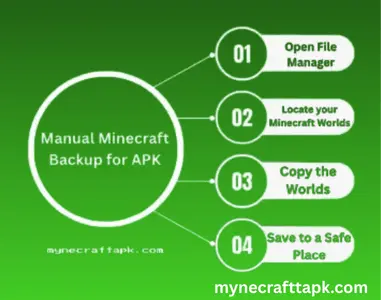
Making a backup of your Minecraft world is very simple:
- Open your phone’s File Manager or Files app.
- Find the folder named com.mojang.minecraftpe.
- You can also reach it by going to:
Internal Storage > Android > data > com.mojang.minecraftpe - Once you locate the folder, select it and make a copy as your backup.
- Save this copied folder somewhere safe, such as your SD card, Google Drive, Dropbox, or USB storage.
Key Folders to Check
- games/com.mojang/minecraftWorlds → Contains all your saved worlds
- resource_packs → Stores your custom texture and visual packs
Using Apps For Minecraft Backup
If you can’t back up your Minecraft world manually, you can use third-party apps that automatically create game backups.
Helium Backup
Works well on older Android versions.
Titanium Backup (root required)
For rooted devices, Titanium Backup can save both the APK and your game data.
Google Drive Backup
A simple option to keep your files safe online.
How to Use These Apps
- Download and install any of the backup apps mentioned.
- Allow installation from unknown sources if required.
- Open the app and look for Minecraft APK in the app list.
- Choose a folder where you want the backup to be saved.
- Wait for the backup to complete — and that’s it, your world is safely backed up!
How to Back Up Minecraft Worlds on Windows/PC
Follow these steps to save your Minecraft world and its progress:
- Connect your mobile device to a computer through a USB cable.
- Enable the file transfer mode named MTP on your phone.
- Open the phone folder and search for the Minecraft Worlds folder on your pc.
- Now, copy all the folders having the files of Minecraft worlds for backup.
- Now go back to your PC and choose a safe destination folder and paste the files there.
This way, your whole game process will be saved on your computer.
Backing Up Your Minecraft APK Account
Following these steps, you can keep your current Minecraft version and your custom settings as well:
- Download an APK Extractor App
- Use any trusted APK extractor like: ML Manager, APK Extractor, ZArchiver
- Open the Extractor App Launch the app and look for Minecraft in the list of installed apps.
- Extract the APK File.
- Tap on Minecraft and choose the “Extract” or “Save APK” option.
- Move the APK to a Safe Place
- To avoid losing it, move the file to your PC, cloud storage, USB drive, or SD card.
- Rename the APK
- Give it a clear name so you’ll remember the version and features included.
How to Recover Minecraft Worlds From Backup
If you want to bring back your old Minecraft world, follow these steps:
- Find the Minecraft backup files from the location where you saved them.
- If the backup is on your PC, connect your phone to access the files.
- Open the saved Minecraft folder and locate com.mojang.minecraftpe.
- Copy the world folders you want to restore and paste them into the minecraftWorlds folder of the game.
- Open Minecraft, select your restored world — and enjoy playing again!
Tips & Tricks For Backing Up Minecraft
- Rename your backup files with the date and day so you can easily keep track of them.
- Make multiple backups before installing mods or updating the app—better safe than sorry!
- Always match your backup to the same version of the Minecraft APK to avoid compatibility issues.
- Store your backups in cloud services like Google Drive or Dropbox for easy access and extra safety.
- Add clear labels or notes to your backups, like “Before Nether Update,” so you know what’s inside.
- Don’t forget to back up both your world files and important game settings if necessary.
- Use the .zip format to keep your backups organized and secure.
Conclusion
If you want to stay on the safe side and avoid the chaos and frustration of losing your world and game progress, backing up your Minecraft APK is the way to go. Regular backups are a reliable safeguard in case your game gets corrupted or your phone is lost. They let you restore all your progress, including custom settings, so you can skip the stress and dive back into the fun. There are several ways to create backups, from doing it manually to using third-party apps. With backups in place, you can enjoy Minecraft worry-free, knowing your hard work is safe.Same method is used for backing up Minecraft java edition.